Set up and use
Set up a counter (5 minutes)
- Open Point of Sale > Configuration > Point of Sales and open the one used at the counter (for example Bakery Counter).
- In the Counter Tickets section, tick Ticket Counter.
- Choose Print Automatically after each ticket, Always Use Browser Print if no receipt printer is connected, and the number of Ticket Copies (1 to 5).
- Save. Every other Point of Sale can scan tickets; untick Scan Counter Tickets on a till that should not.
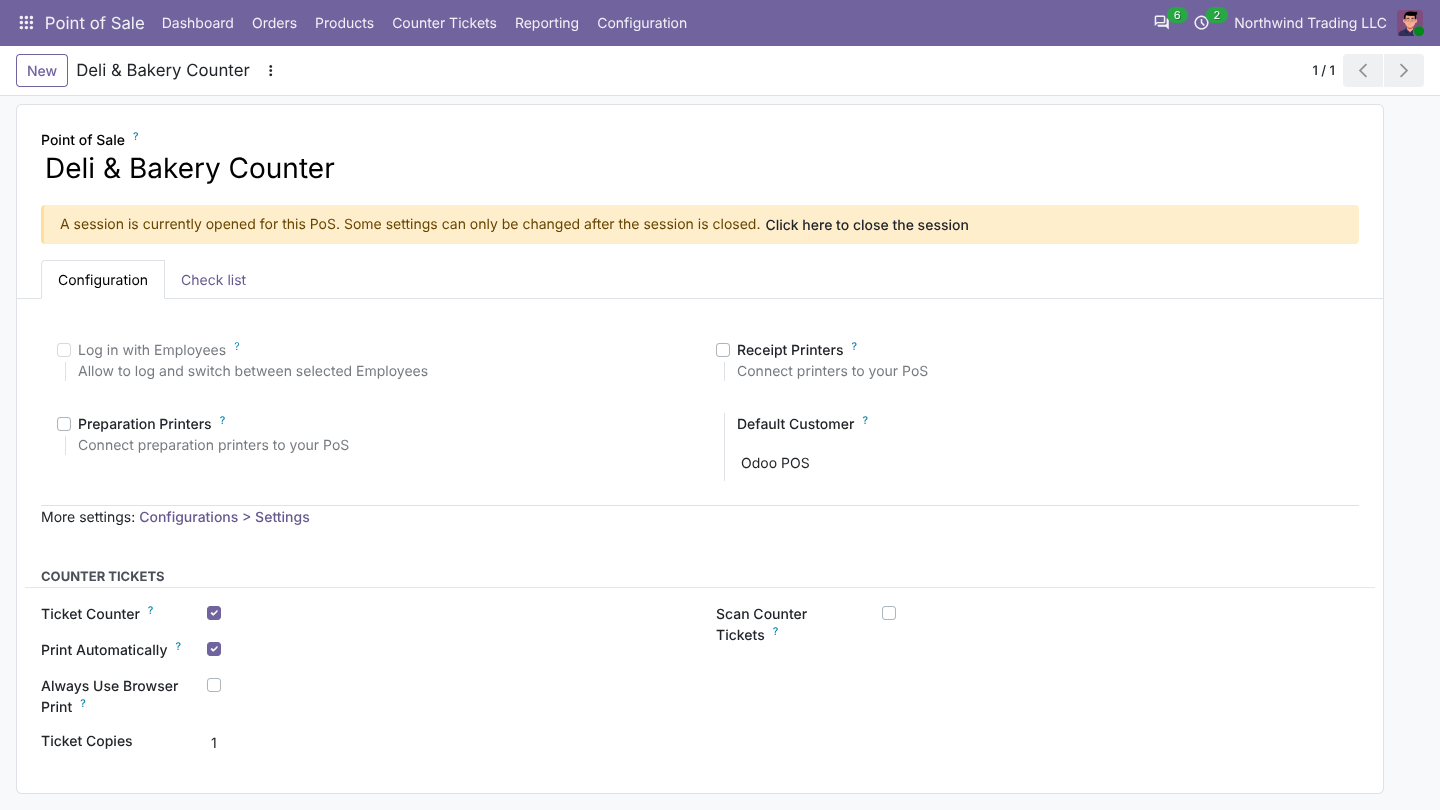
Use one counter Point of Sale per department (bakery, deli, butcher, pharmacy) to see sales per counter.
Who can do what
- Counter Ticket User: prints and scans tickets.
- Counter Ticket Manager: also corrects or cancels tickets.
At the counter: print a ticket
Add the products as for any sale (weighed items print with their weight) and click Print Ticket.
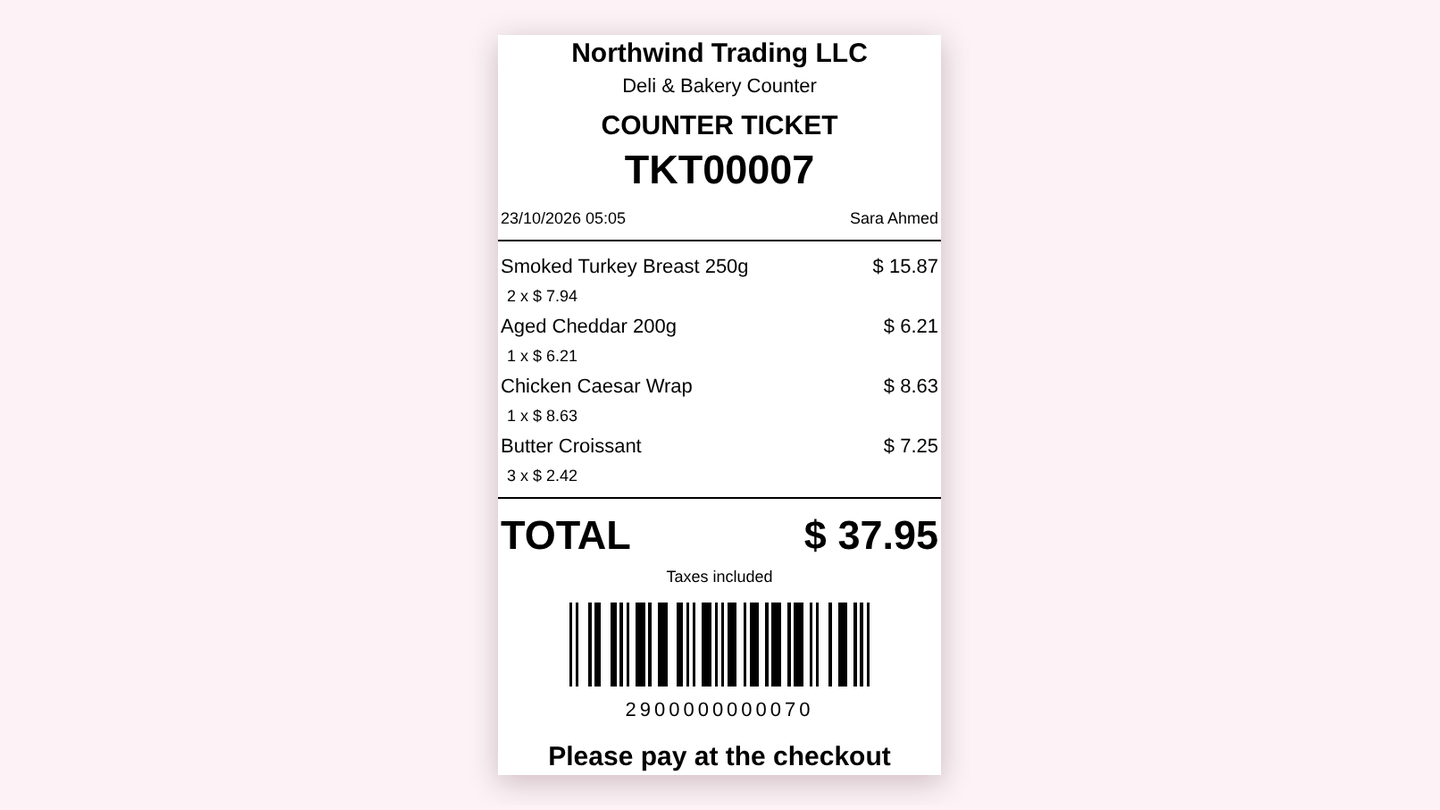
The ticket shows your company, the counter, every item with quantity and price, the total with taxes and a barcode.
At the checkout: scan and pay
The cashier scans the ticket barcode. Odoo shows what is on the ticket and asks for confirmation, then adds all items with the counter prices and discounts.
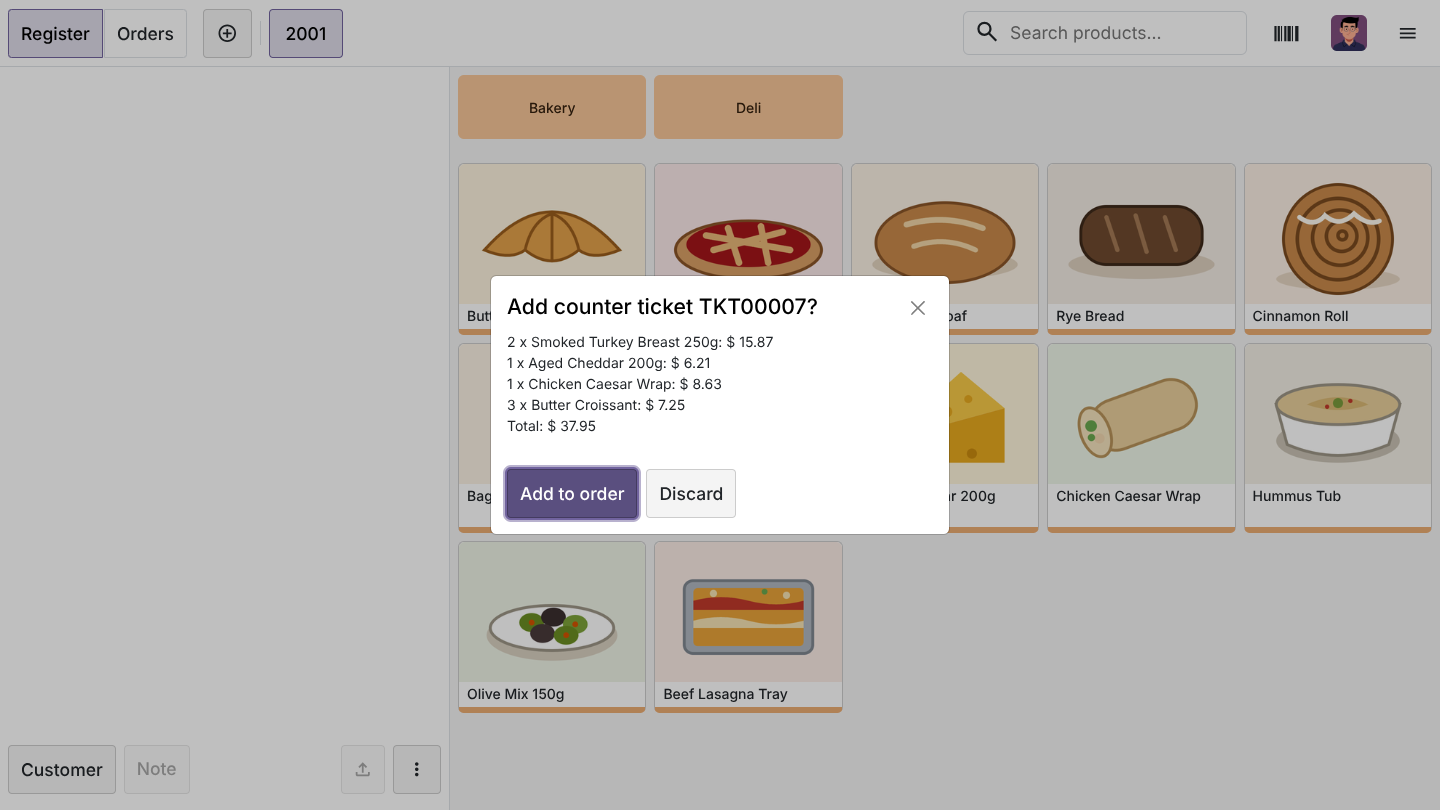
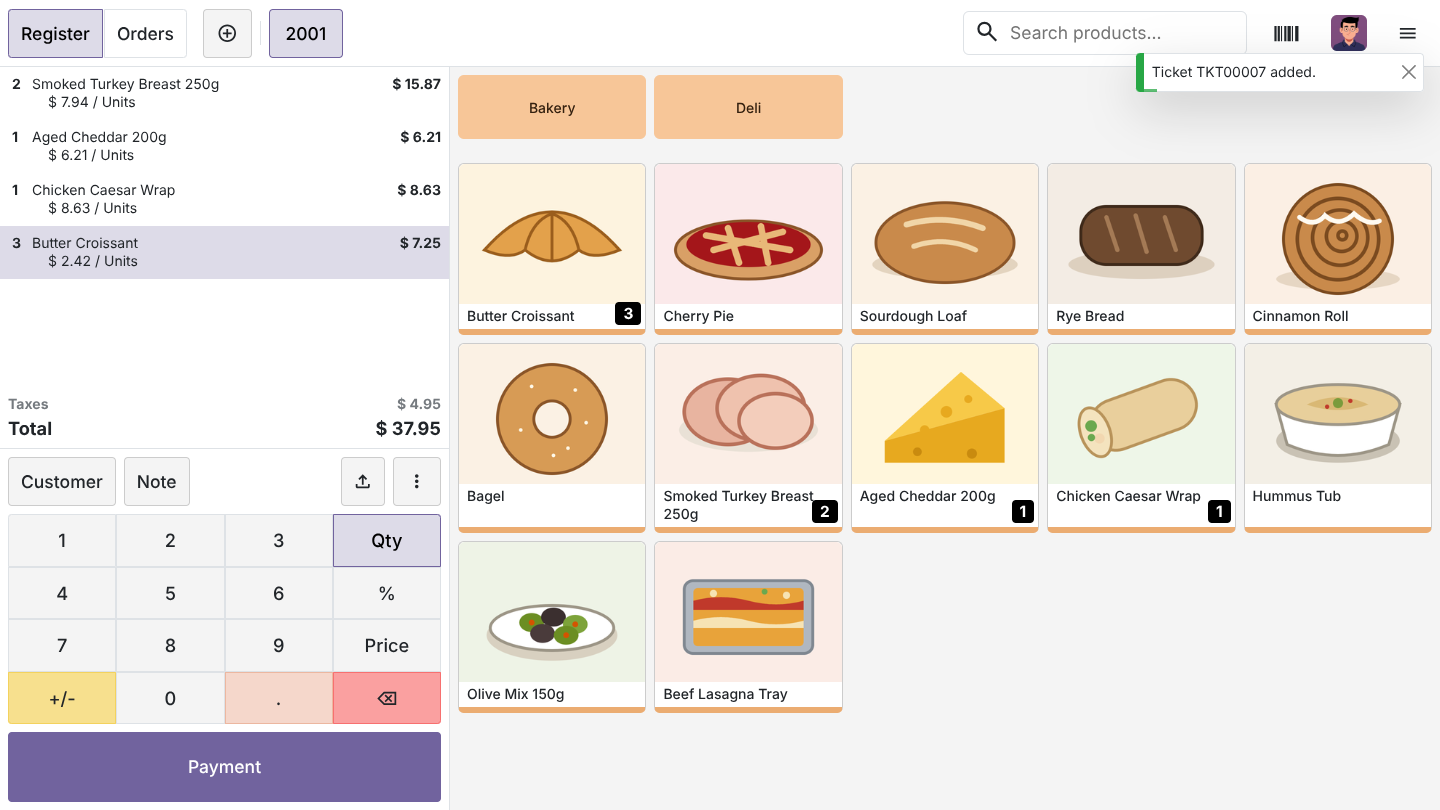
- Scan several tickets into one order, add other products and take one payment.
- A ticket that is already paid, or waiting in another till, is refused with a clear message.
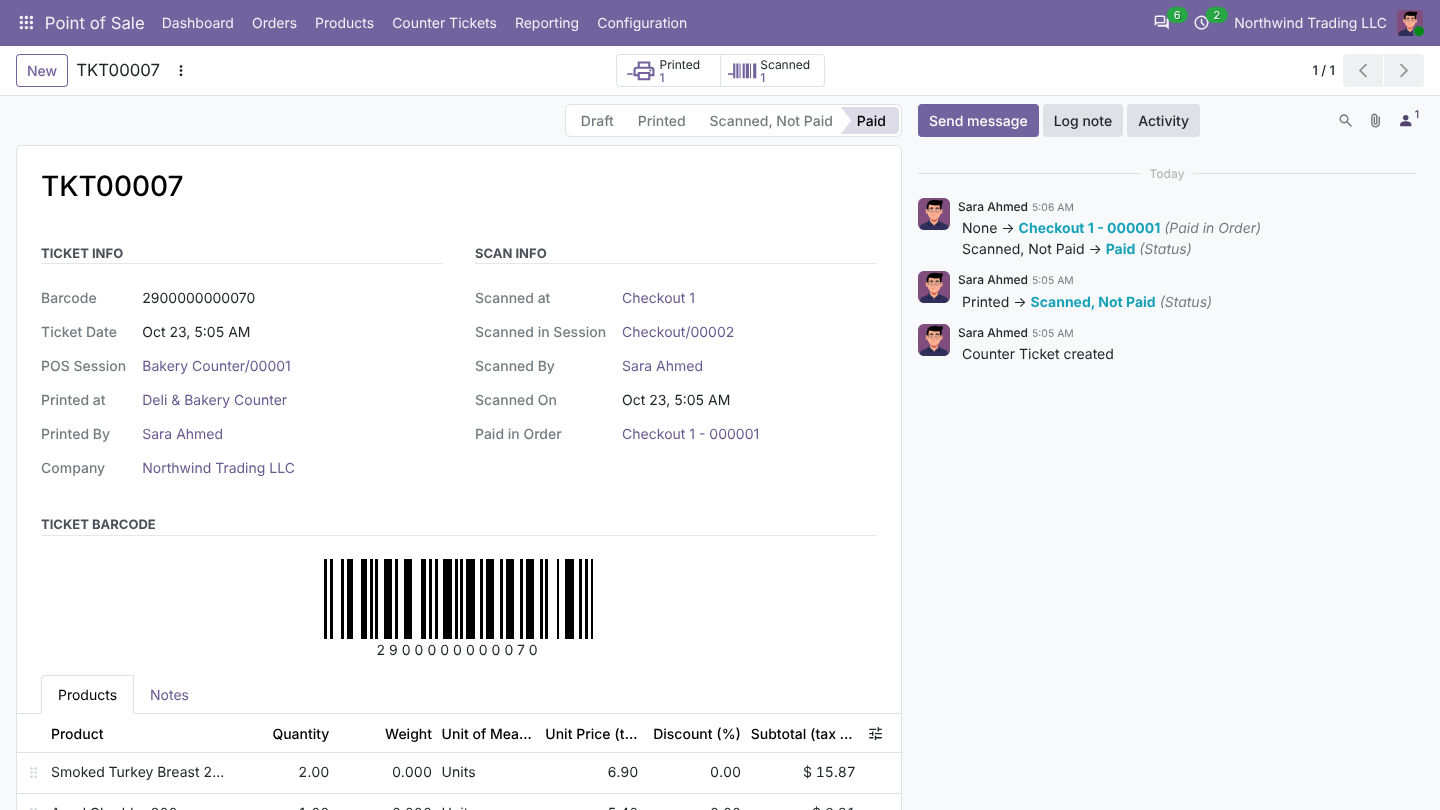
- Each order line remembers its ticket number, so Odoo knows exactly which order paid which ticket.
Track tickets
Point of Sale > Counter Tickets > All Tickets lists every ticket with its counter, total and status: Printed, Scanned, Not Paid, Paid or Cancelled. Paid tickets link to the order that paid them. Use Today's Tickets (or the Today filter), the Not Paid and Paid filters, and group by status, session, user, checkout (Scanned at POS) or date.
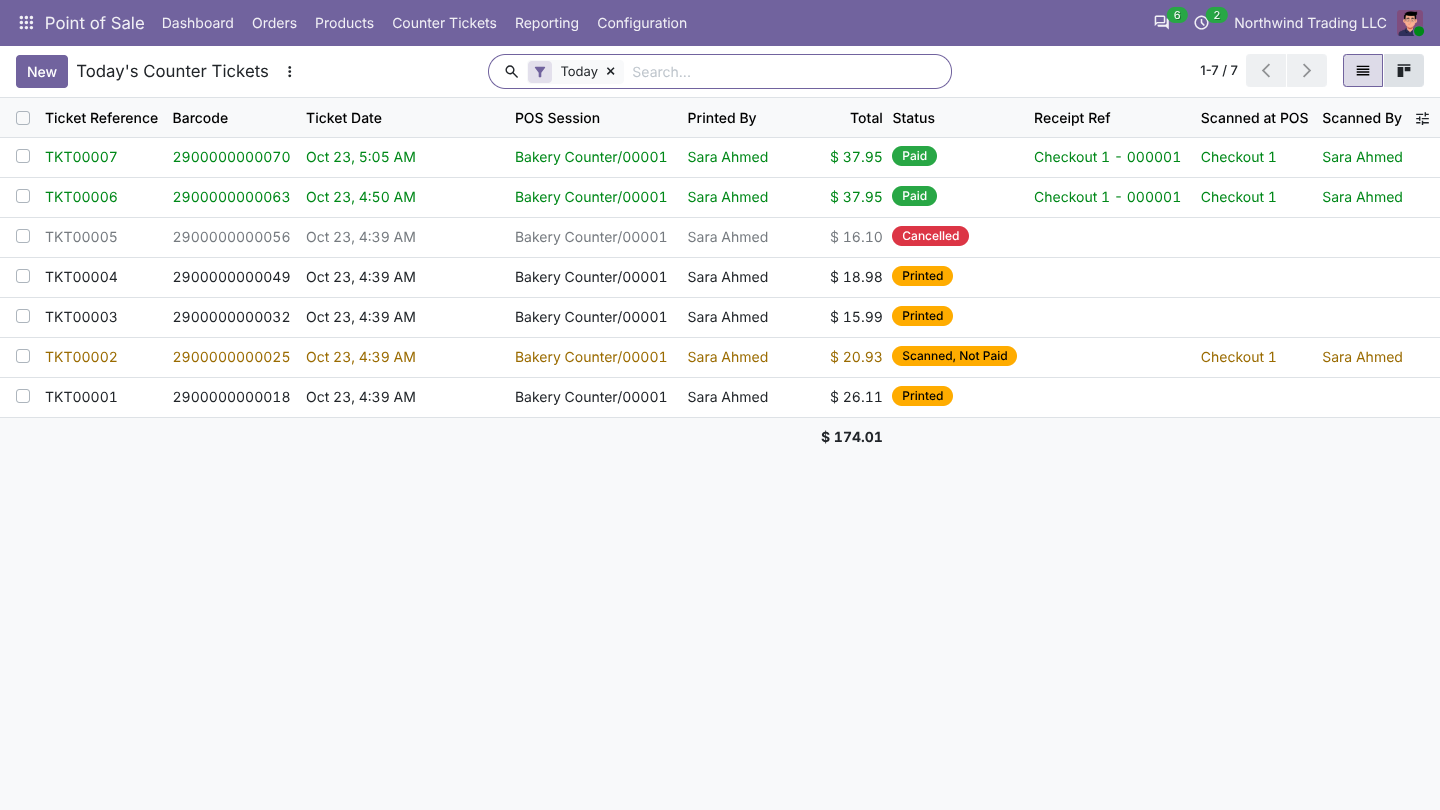
The customer walked away
A ticket scanned but never paid stays Scanned, Not Paid. A manager can click Back to Printed so it can be scanned again, cancel it, or link it by hand to the order that paid it. Paying another order never marks it paid.
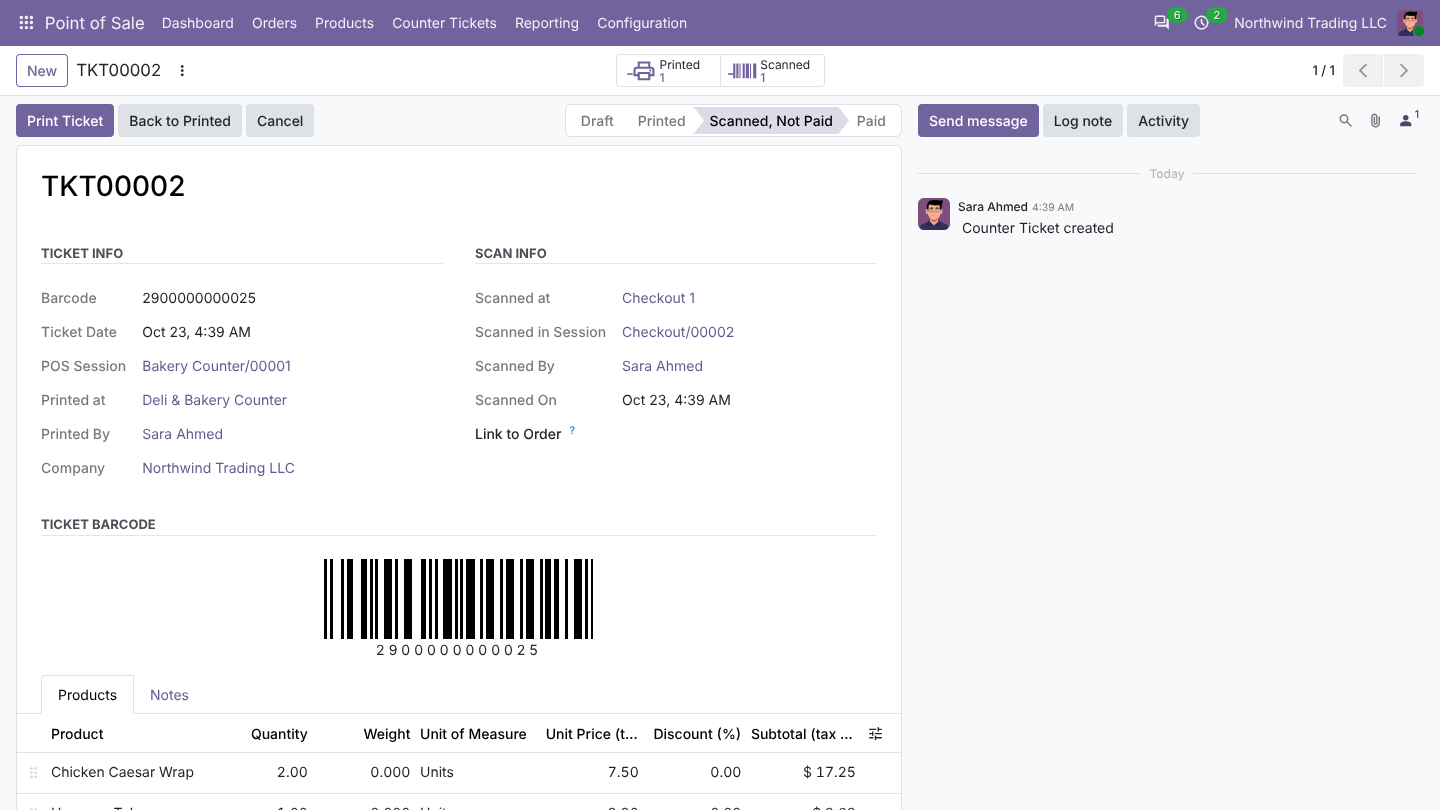
Any ticket that is not cancelled can be reprinted from the back office.