Connect your AI app
Open AI Connector > Connect an AI App. The page shows your connector URL and the steps for each AI app.
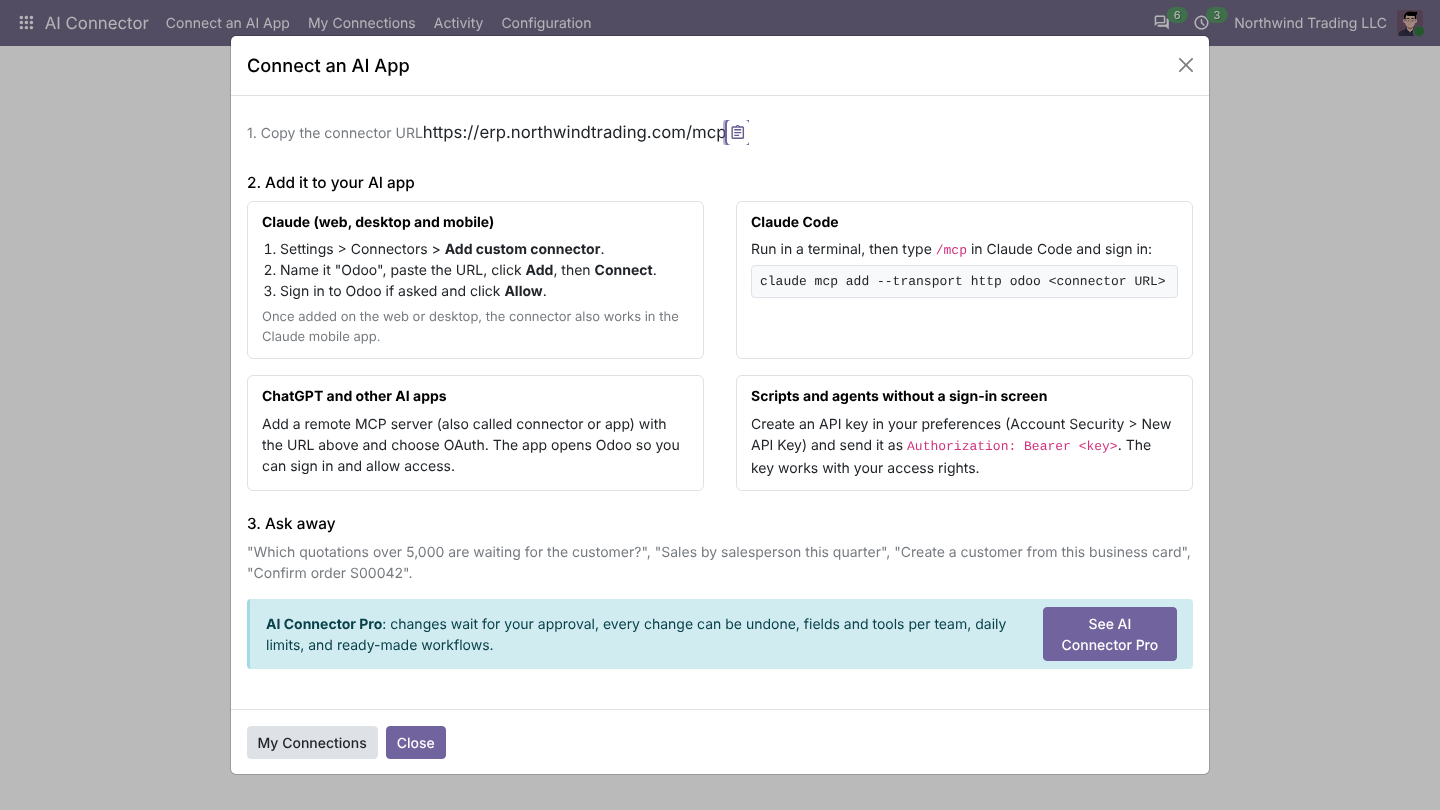
Claude (web, desktop and mobile)
- In Claude, open Settings > Connectors > Add custom connector.
- Name it Odoo, paste the connector URL and click Add.
- Click Connect, sign in to Odoo if asked and click Allow.
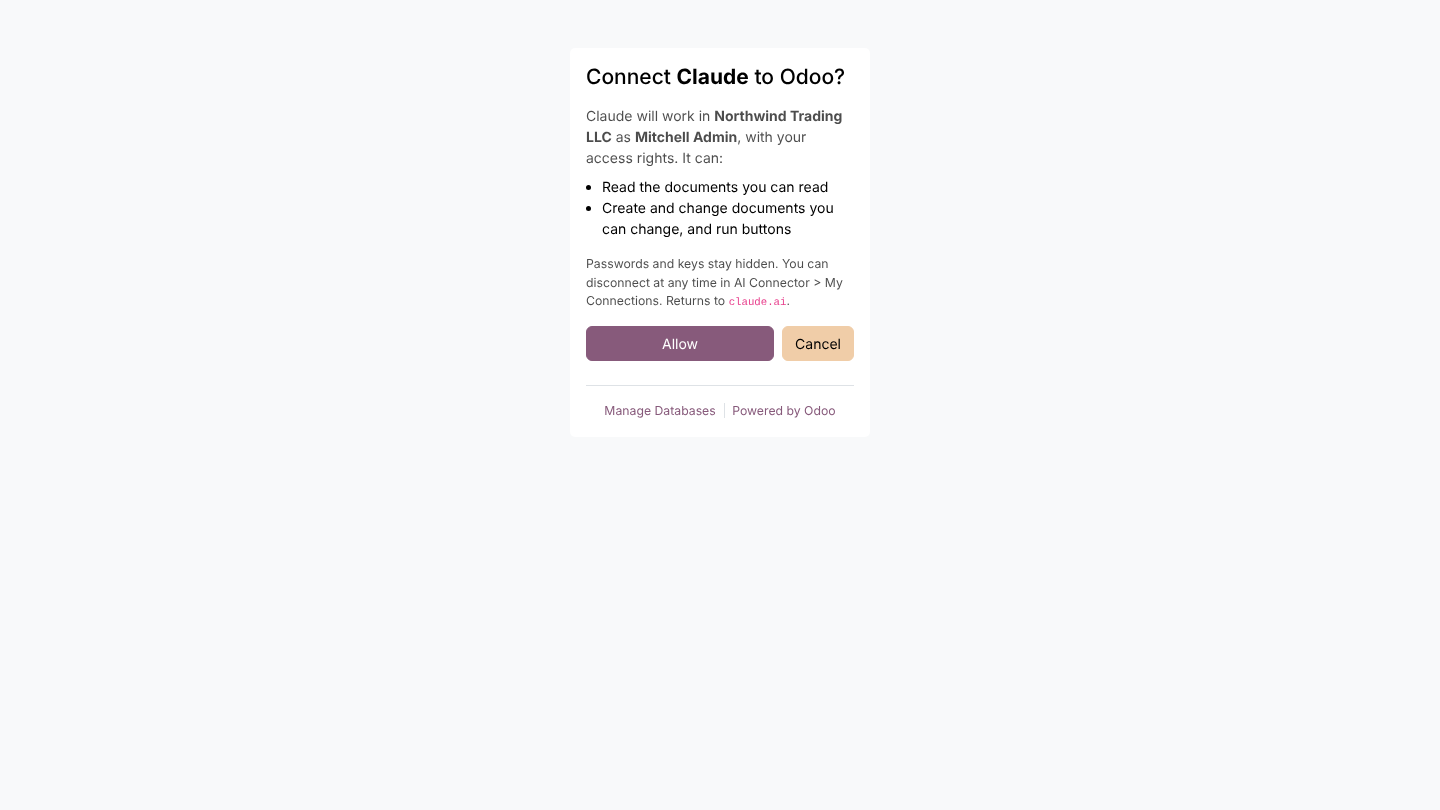
Once added on the web or desktop, the connector also works in the Claude mobile app. Now ask Claude things like "Which quotations are waiting for a reply?" or "Create a quotation for Gemini Furniture with 4 office chairs".
Claude Code
Run in a terminal, then type /mcp in Claude Code and sign in:
claude mcp add --transport http odoo <connector URL>
ChatGPT and other AI apps
Any app that supports MCP connectors with sign-in works the same way: add a connector with the URL and sign in with Odoo.
Scripts and agents without a sign-in screen
Create an API key in your Odoo user preferences and send it as Authorization: Bearer <key>. The key works with your access rights. An administrator can switch API keys off.
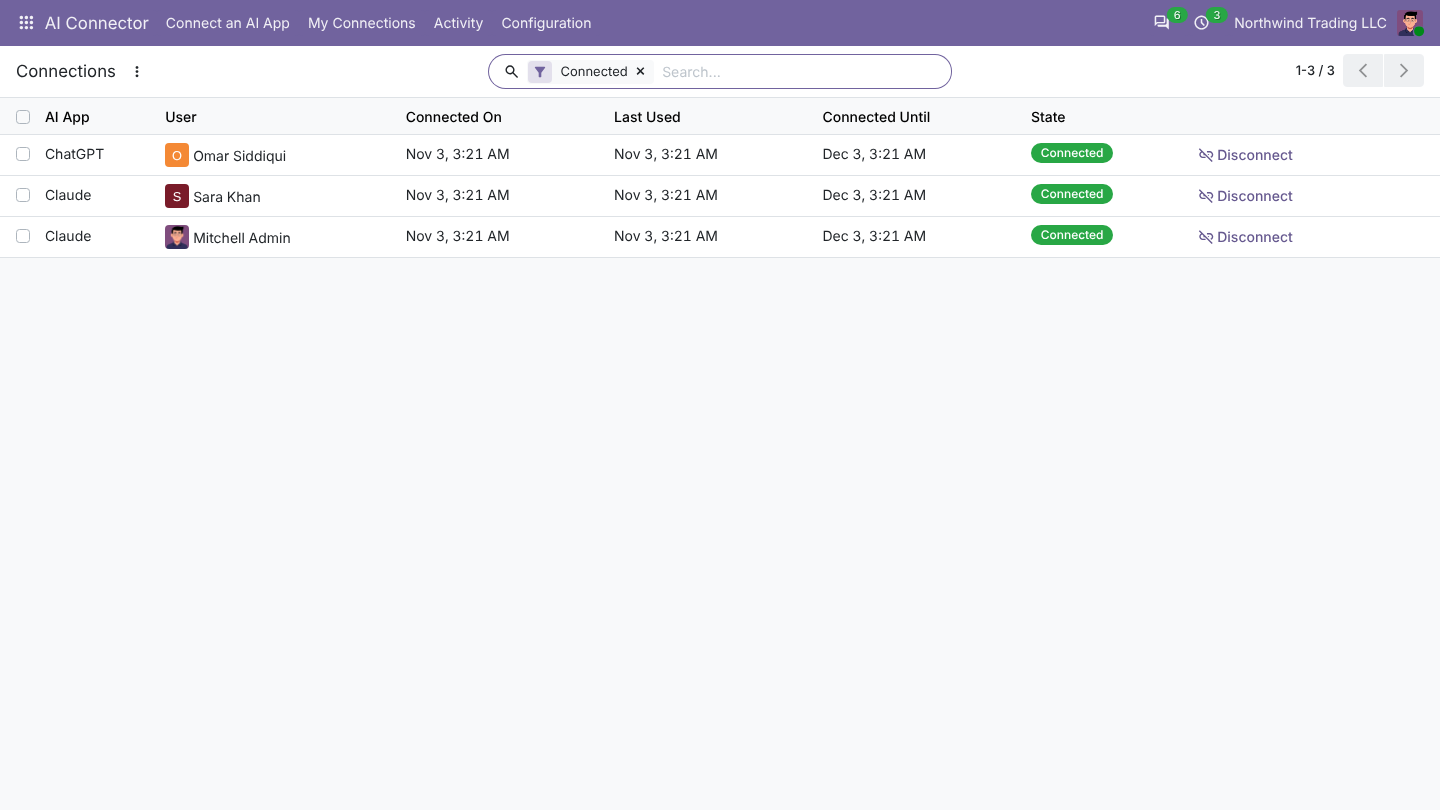
My connections
AI Connector > My Connections lists the AI apps you connected. Disconnect one at any time; it then has to sign in again.